
What counts as local
Private network addresses, .local names and names pointing to a private address: accepted without the module.
Add-on module · remote cameras
By default, an IA-N box only accepts cameras from its own local network. The off-network streams module (“Flux hors réseau” in the partner catalogue) lets it add a camera reached through a public address or a DNS name: another building, a small site without a box, a remote entrance. The remote camera is then analysed like the others.
What the module is for
Cover a nearby site, an annex or a remote entrance without installing another box there: the camera sends its stream to the existing box, which analyses it with the same rules.
Private network addresses, .local names and names pointing to a private address: accepted without the module.
Public IP address, public DNS name or a name that does not resolve: adding the camera requires the off-network streams module.
Cameras of another IA-N box, reached through the fleet's private network, fall under the Multisite module; the off-network streams module also covers this case.
The module is enabled once for the box. Each remote camera uses its own camera licence, just like a local camera.
How it works
The check takes place when the camera is added and whenever its address is changed, in the Video streams screen.
In “Add a stream”: address of the camera's main stream and, if possible, of its light sub-stream. For an ONVIF camera: manual addition by address, port, username and password, with “Test the connection”.
Local, IA-N fleet private network or off-network. A DNS name is resolved when the camera is saved: if it points to a private address, the camera counts as local.
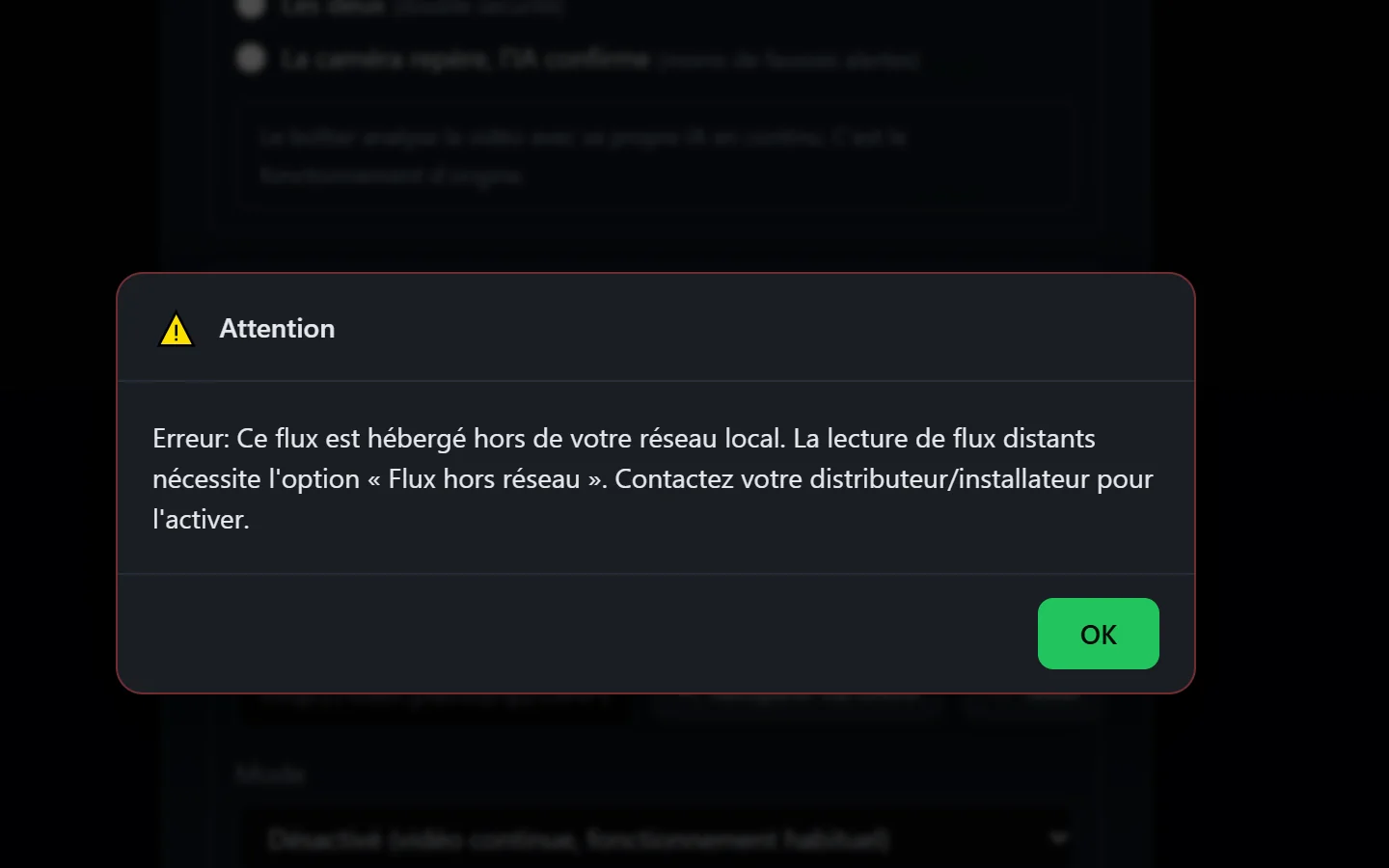
Saving is refused with the message “This stream is hosted outside your local network…”, and the form stays open. Nothing is added.
It receives a camera licence and joins the list of streams; zones, time windows, alerts and notifications are set as for a local camera.
As for any camera, a lasting outage triggers the “Camera without image” alert, then “Stream restored” when the image returns.
Adding, editing, pausing and deleting a camera are recorded in the audit log, with login credentials hidden.
Automatic ONVIF discovery only sees the box's local network: a remote camera is entered by hand.
In the interface
Adding a stream by its address, or adding an ONVIF camera manually; the message shown without the module appears at the top of this page.
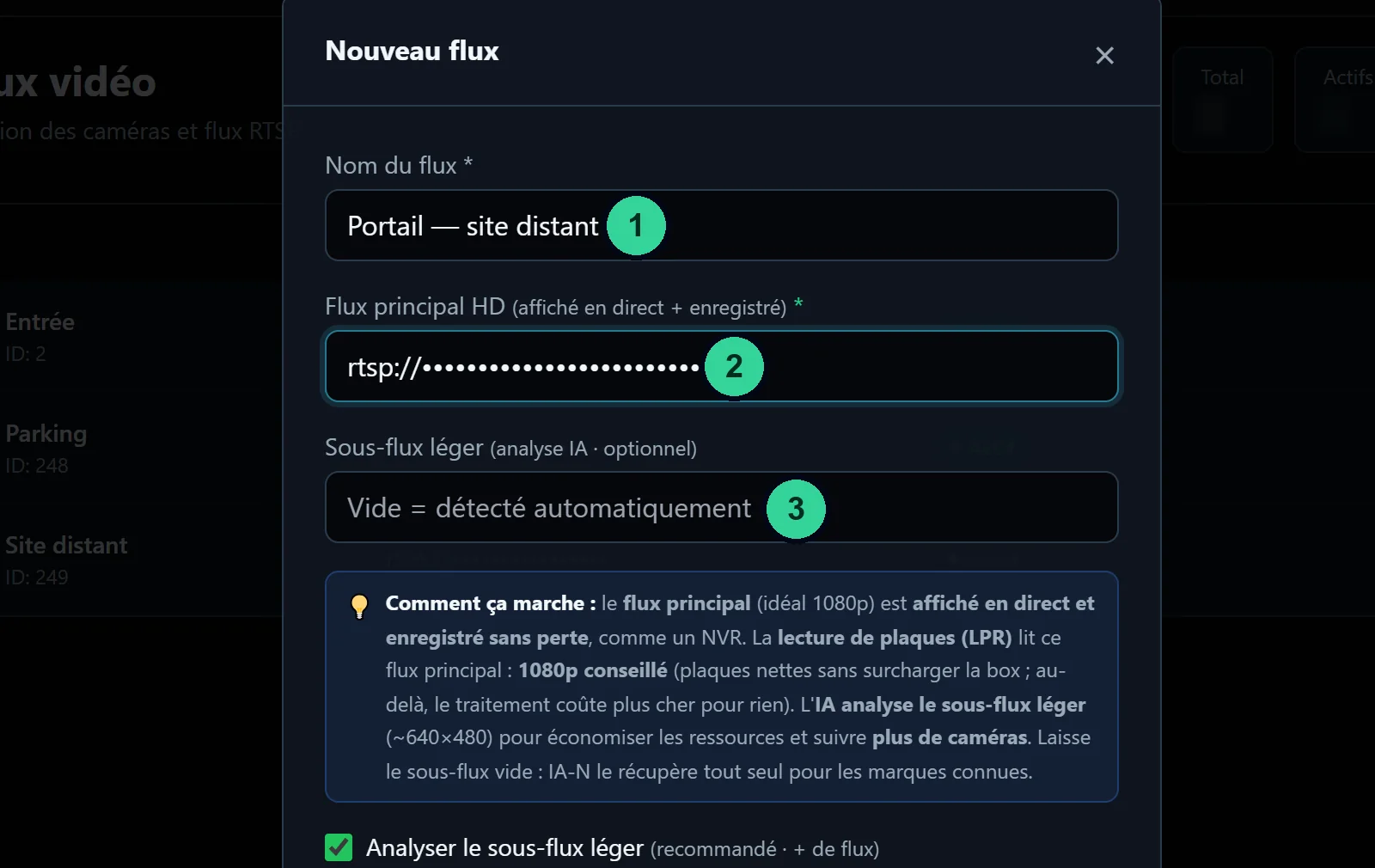
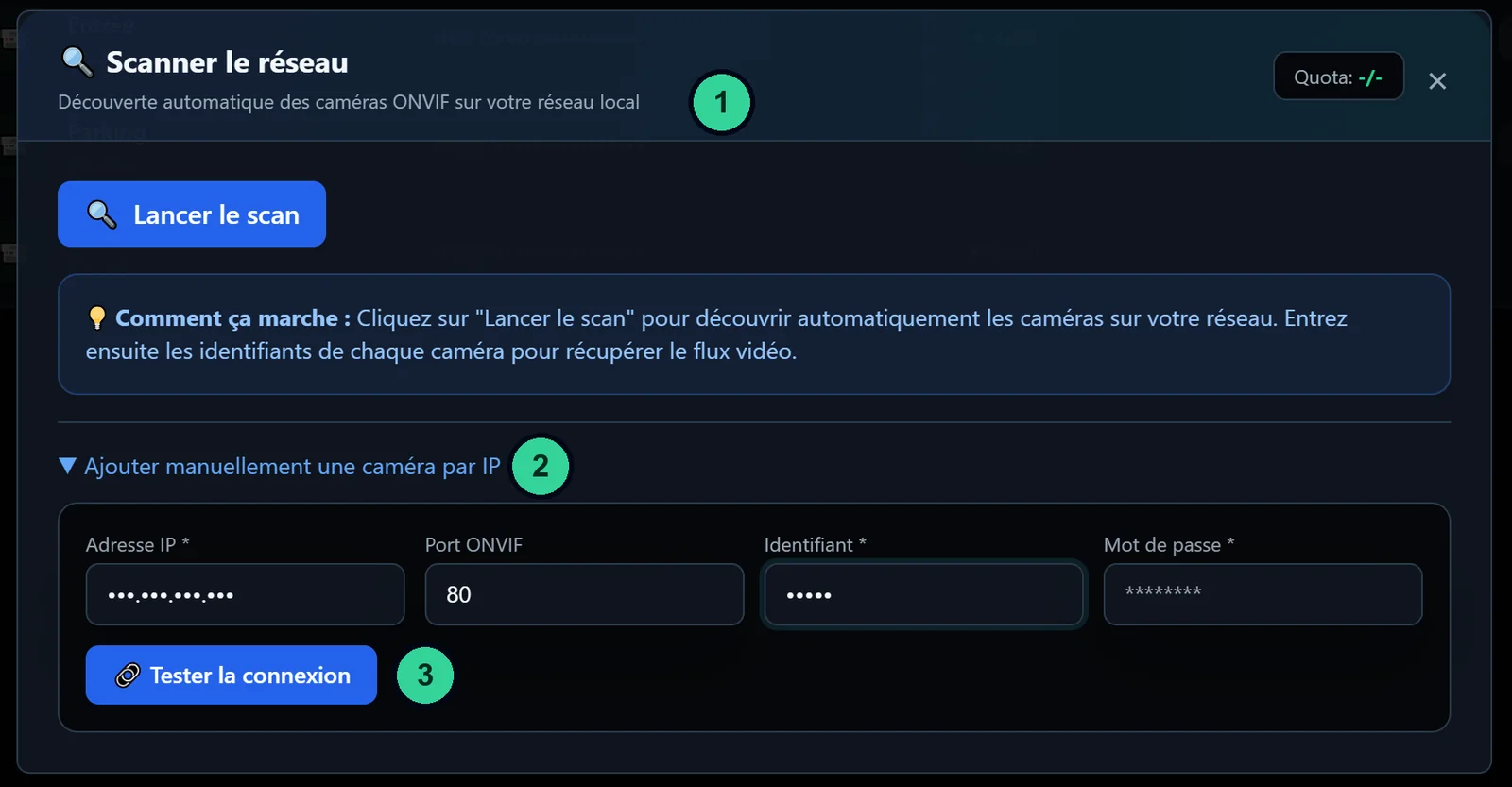
Real screenshots of the IA-N box (interface in French); licence plates, people and names hidden.
Use cases
Common situations where one or two cameras are far from the box.
A branch or an annex with one or two cameras: their streams are analysed by the main site's box.
An entrance far from the building, connected through an Internet link: the gate camera joins the existing box.
Building site or temporary depot: a camera connected through the Internet joins an existing box for the duration of the works.
Group on one box the cameras of several small sites, with the same rules and the same Alert centre.
Set-up by the installer
The key part happens on the network side: the camera must be reachable by the box, and by the box only.
The off-network streams module is enabled once for the box; each camera added uses its camera licence.
Port forwarding on the remote site's router, restricted to the box's public address. Never a camera open to the whole Internet.
Main stream address as reachable from the box, and the light sub-stream if the camera has one; then check the image in the player.
Zones, time windows, alerts and notifications; then check the stability of the link over a few days.
Behind a router, an ONVIF camera may announce its local address, which the box cannot reach: enter the stream address as it is reachable from the box.
Notifications and integrations
Once added, the remote camera follows the same rules as local cameras.
Its alerts arrive like the others, in the Alert centre if the module is enabled.
Same notification settings as for a local camera: categories, cameras and time windows.
“Camera without image” alert when an outage lasts, then “Stream restored”: they reach the Alert centre and the notifications.
Security and GDPR
The stream goes straight from the camera to the box, without passing through an ElectroniSafe server. Securing the link between the sites is arranged with the operator, who is the data controller.
The box receives the analysed stream continuously: plan for sufficient, stable upload bandwidth at the remote site, and enter the camera's light sub-stream, which the AI analyses when it is available.
Prerequisites
To check before connecting a remote camera.
FAQ
Another question about this module? Our sales team will answer.
A camera whose address is not local for the box: public IP address, public DNS name, or a name that does not resolve. Private addresses, .local names and names pointing to a private address are local.
Saving the camera is refused with a message stating that the stream is hosted outside the local network and that the off-network streams option is required. Nothing is added.
Yes. The module is enabled once for the box, and each remote camera uses its camera licence, exactly like a local camera.
They go through the IA-N fleet's private network and fall under the Multisite module, which also shows the streams of sister boxes and groups their alerts. The off-network streams module also covers these addresses.
No: ONVIF discovery only sees the box's local network. A remote camera is entered by its stream address, or by adding an ONVIF camera manually with “Test the connection”.
With port forwarding that only accepts the box's public address, a dedicated account and a strong password. Never leave a camera open to the whole Internet.
No. The stream goes straight from the camera to the box, which analyses it on site.
When the outage lasts, the box reports a camera without image, then the stream's recovery; these alerts reach the Alert centre and the notifications.
The box administrator and the installer. An agent account can neither add nor edit a camera; every addition or change is recorded.
Other modules
Describe the sites and the available links: we will help you choose between one box per site, the Multisite module and the off-network streams module.