
All alerts in one place
People, vehicles and animals, plates on the deny list, alerts from the other modules enabled and technical alerts, such as a camera without image.
Add-on module · Supervision module
The Alert centre brings all the box's alerts together in the player, like an alarm centre built into the interface. Each alert arrives with its photo, camera and arrival time, then is acknowledged in the operator's name. In the partner catalogue, it is the Supervision module.
What the module is for
For the site operator or their security guard: alerts are no longer lost between several screens, and each one keeps a record of who handled it, and when.
People, vehicles and animals, plates on the deny list, alerts from the other modules enabled and technical alerts, such as a camera without image.
The photo shows the scene at the moment of detection, target framed with its category and confidence level, privacy masks applied.
Each acknowledgement records the user and the time in the audit log. “Acknowledge all” handles the displayed alerts in one go.
For each camera: alerts on or off, and a time window set to the second, including one that runs past midnight.
One category or one camera at a time, with the “Today” and “Unread” counters.
With the Multisite module, alerts from the other boxes of the fleet arrive in the same centre, labelled with their box.
How it works
The path of an alert, from the camera to the operator.
A new target in a detection zone creates an alert: one per target, with no repeat for the same target. A parked vehicle raises no new alert as long as it stays in place; its departure is reported.
The photo is taken at the moment of detection, target framed, privacy masks applied. It arrives with the alert or a few seconds later.
It shows up in the player without reloading the page, with a sound signal that can be muted. Three display modes to choose from: Discreet (bell with a counter), Panel (column of alerts) or Pop-ups.
A click on the card opens the photo in full size, with the camera, the category and the confidence level; the mouse wheel zooms into the image. Opening an alert does not acknowledge it.
The “Acknowledge” button records their name and the time. The acknowledgement appears on the other open screens and stays in the audit log.
Audit and Compliance lists the alerts, with filters and a PDF export showing whether each one was acknowledged, and by whom; the audit log keeps the time-stamped detail of the actions.
The per-camera and time-window setting decides whether the alert is created. Phone notifications, alarm monitoring and recording keep their own settings.
In the interface
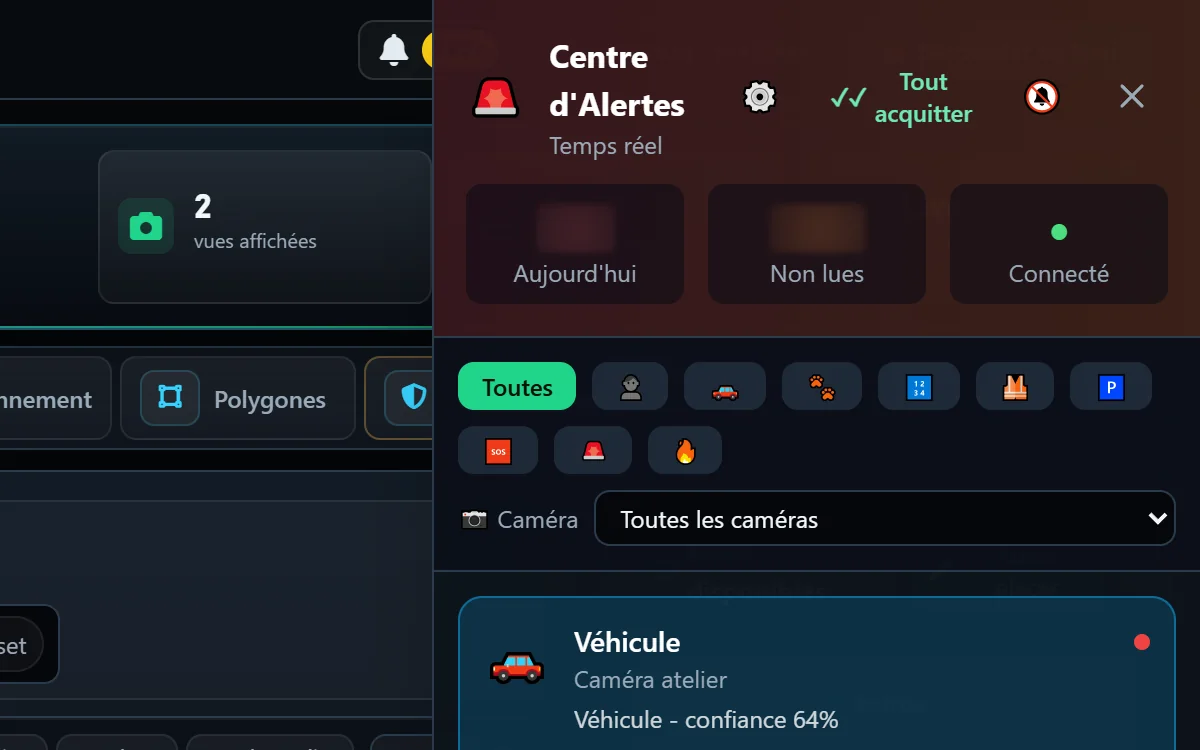
The centre opens on the right of the player; each alert's photo opens in full size; the per-camera setting is in the centre's header.
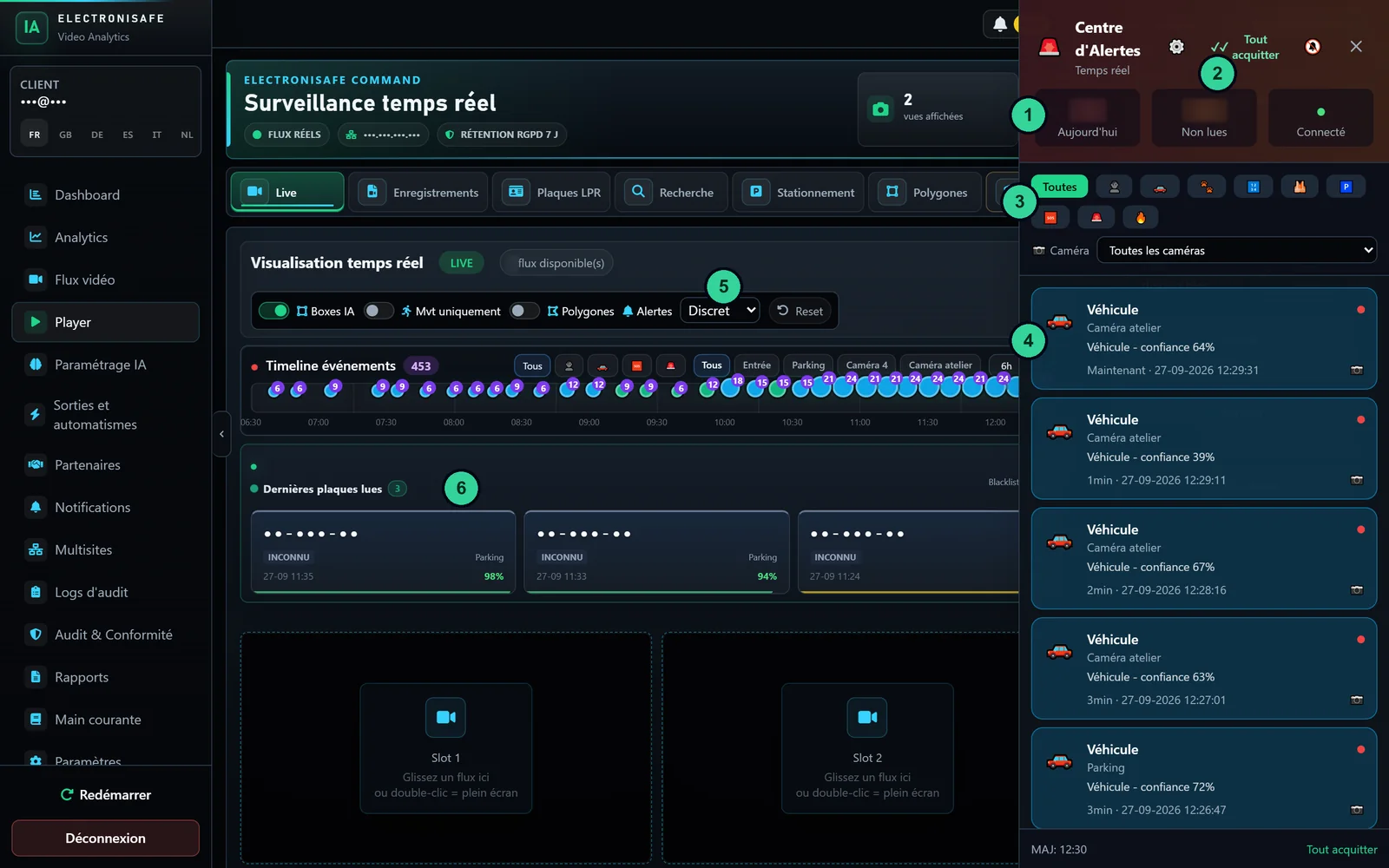
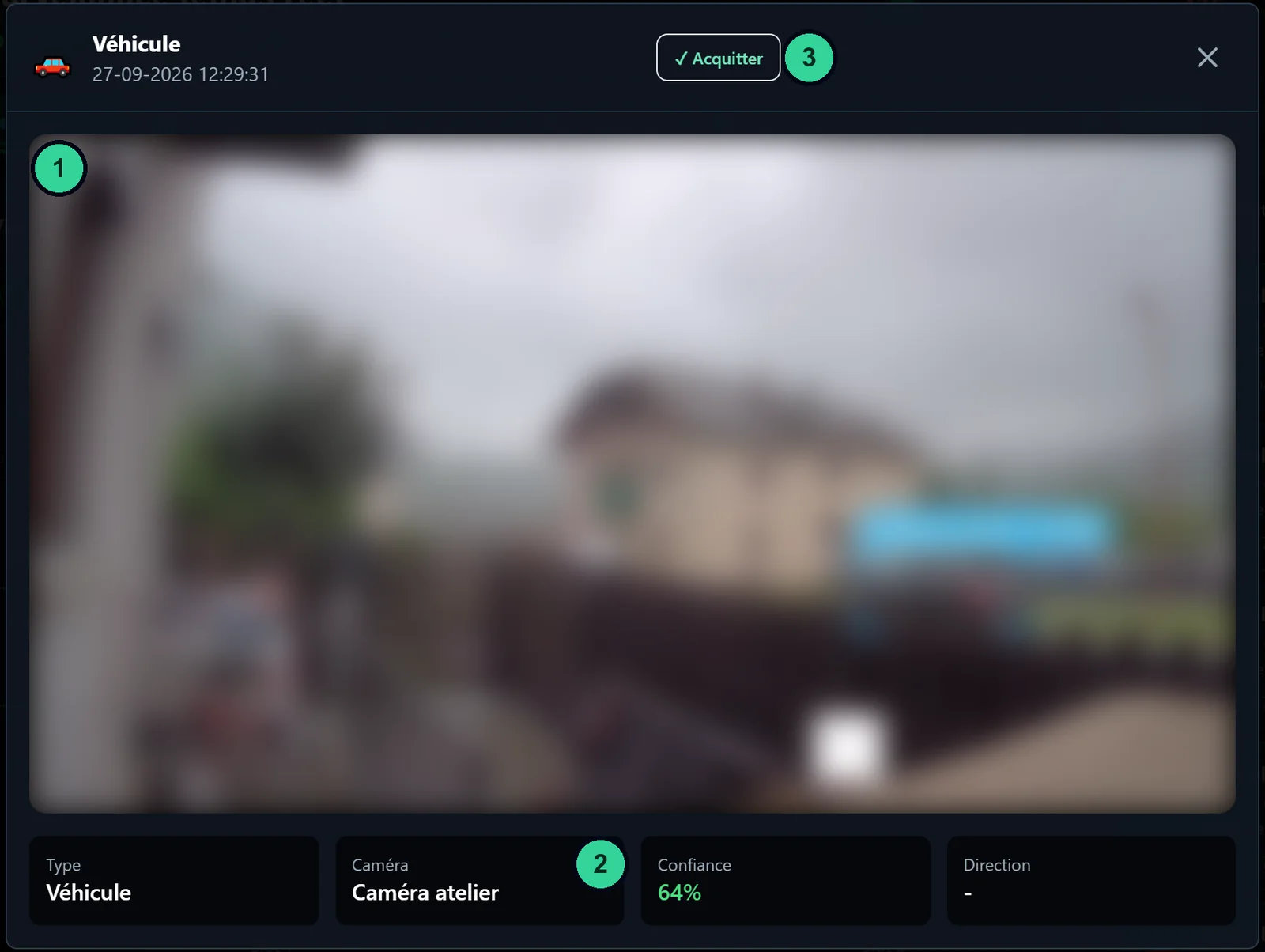
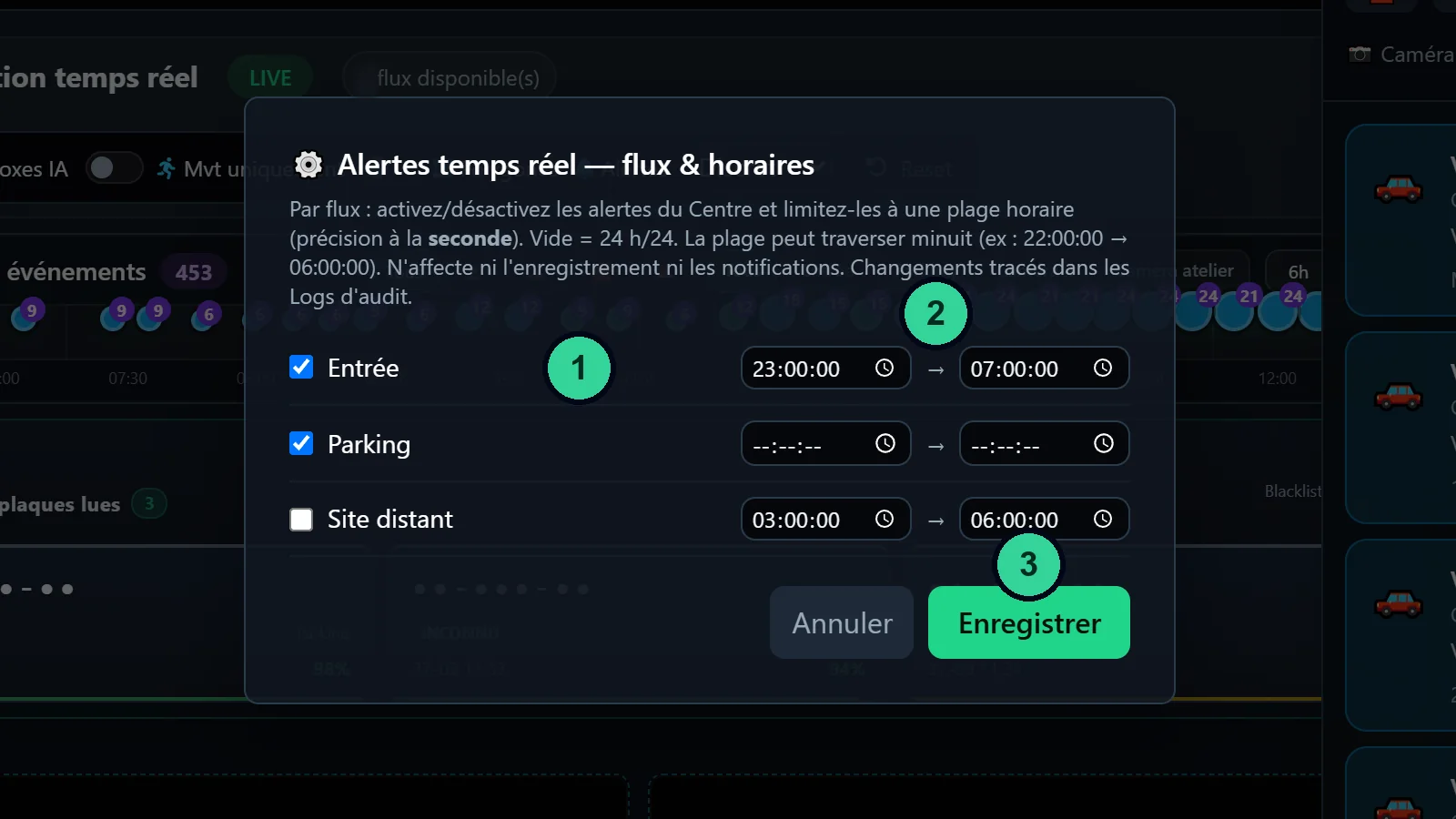
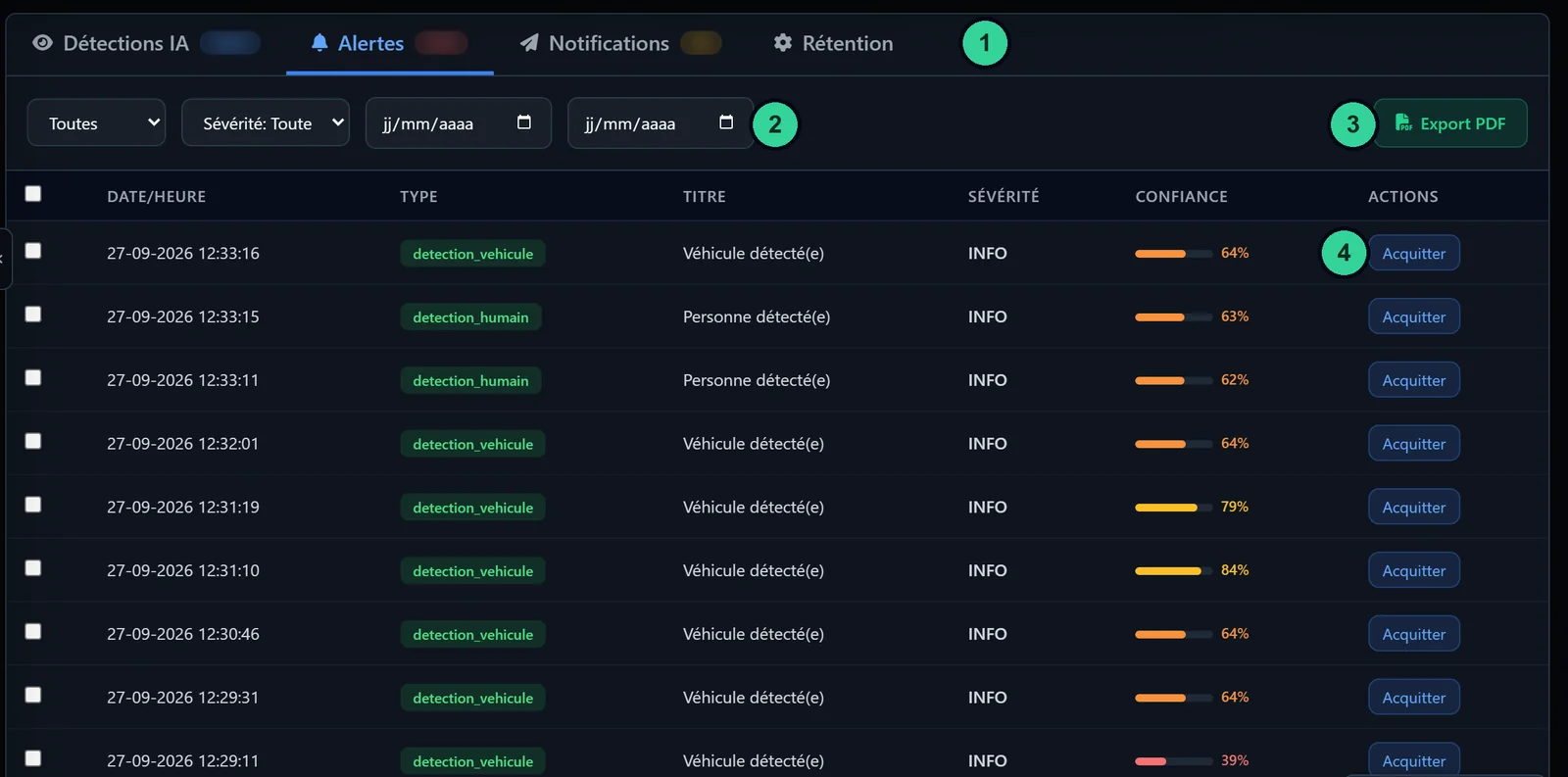
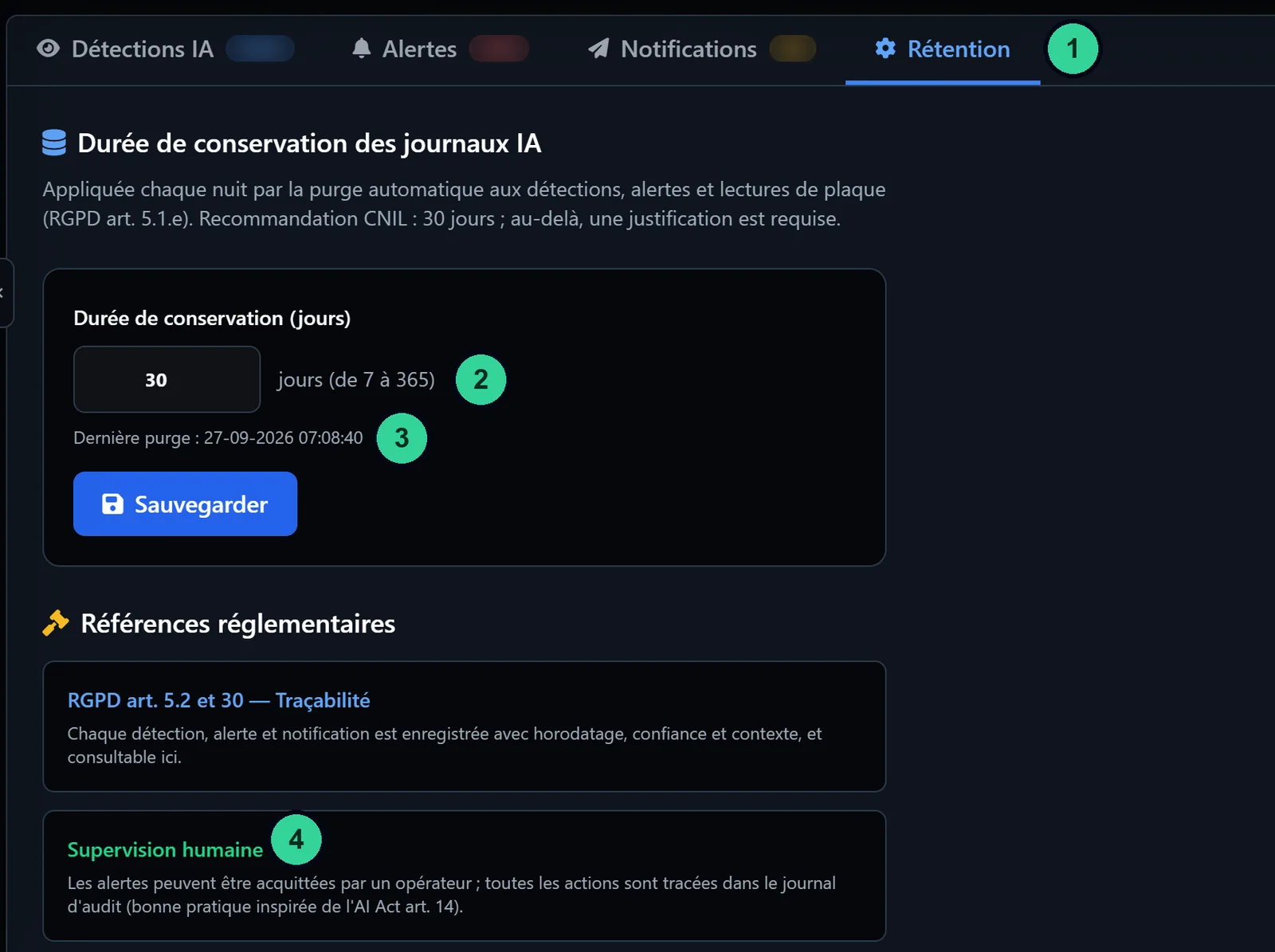
Real screenshots of the IA-N box (interface in French); licence plates, people and names hidden.
Use cases
The Alert centre is useful whenever someone follows a site's alerts.
At opening time, the team reviews the night's alerts photo by photo and acknowledges them as they check.
The security guard follows the site in real time; every alert handled carries their name and the time.
Alerts active only at night on the perimeter cameras, thanks to the per-camera time windows.
With the Multisite module, alerts from several boxes arrive in the same centre, with the name of each box.
Set-up by the installer
The Alert centre is added to a box already in service.
The Alert centre is enabled by licence on the box (Supervision module in the partner catalogue). Without a licence, it does not appear in the player.
Alerts for people, vehicles and animals come from the detection zones drawn on each camera.
In the centre's header, the cog opens the settings: alerts on or off and the time window of each camera.
Administrators and the installer can use the centre; an agent account needs the “Alert centre” permission. The settings stay reserved to non-agent accounts.
Notifications and integrations
The Alert centre comes on top of the existing channels without replacing them.
They keep their own settings (cameras, categories, time windows): the centre's setting does not switch them off.
Transmission in SIA DC-09 or Contact ID to the monitoring centre remains independent of the Alert centre.
Relays are set in Outputs and automations. A basic alert switched off by the centre's setting does not trigger a relay.
With these modules: the day's alerts and acknowledgements, average handling time, who acknowledged; acknowledged events shown in the logbook.
Alert history filtered by status, severity and dates, bulk acknowledgement, PDF export showing “acknowledged” and by whom.
Each box that shares its alerts has its own Alert centre module; the box receiving them also has the Multisite module.
Security and GDPR
The Alert centre collects nothing more: it gathers the alerts the box already produces and records who views and acknowledges them. The data controller remains your customer, the site operator.
The alert's arrival time, its acknowledgement and its author are kept: enough to answer “I was never warned” as well as to check a team's response times.
Prerequisites
The centre works with the detections already configured on the box.
FAQ
Another question about this module? Our sales team will answer.
The player panel that gathers the box's alerts in real time, with photo, camera and arrival time, and lets you acknowledge them in the operator's name. In the partner catalogue, it is the Supervision module.
People, vehicles and animals detected in the zones, plates on the deny list, alerts from the other modules enabled on the box and technical alerts, such as a camera without image and then its recovery.
No. The alert stays pending until the operator clicks “Acknowledge”. The acknowledgement records their name and the time in the audit log.
Yes: “Acknowledge all” handles the unread alerts displayed, after confirmation. The operation is recorded with the user and the time.
Yes, camera by camera: alerts on or off, and a time window set to the second, which may run past midnight. An empty window means around the clock.
No. It decides whether the alert is created in the centre; phone notifications, alarm monitoring and recording have their own settings.
Yes, if their account has the “Alert centre” permission. They view and acknowledge; camera and time settings stay reserved to non-agent accounts.
Yes, with the Multisite module on the viewing box and the Alert centre module on each box that shares its alerts. Each card shows the box it comes from.
30 days by default, adjustable. Alerts and their photos are then deleted automatically; the audit log is kept separately.
Other modules
Tell us about the site, the cameras and the team that follows the alerts: we will show you the Alert centre in a demo.